 Saskia Teichmann
As of June 2026. Yoast SEO doesn’t do the SEO work for you. However, the plugin ensures that WordPress correctly outputs important signals: SEO titles, meta descriptions, canonical URLs, XML sitemaps, Schema.org data, and social metadata. It also helps you with your writing, because you can see right in the editor whether your text is clearly structured and aligns with the selected search intent.
I’m writing this guide for people who manage their own WordPress sites and want to know which Yoast settings really matter. No plugin myths. No screenshot tour of every single toggle. Instead, I’ll explain what each feature does, when you need it, and when you can safely leave it alone.
The Short Version: What You Should Really Set Up in Yoast
- Enable SEO analysis, readability analysis, XML sitemaps, Schema, Open Graph, and the social metadata you really need.
- Maintain the website basics: website name, separator, organization or person, logo, and relevant social media profiles.
- Use templates for posts and pages as a safety net, but write important SEO titles and meta descriptions individually.
- Decide on categories, keywords, and archives based on their usefulness: Empty archive pages should not automatically be included in the index.
- Think of the Yoast traffic light as a guide, not a judgment on the quality of your text.
- Set up Google Search Console separately and submit your Yoast sitemap there.
- Premium is only worth it if you actually use specific features like redirects, internal link suggestions, or special add-ons.

What Yoast SEO Can and Cannot Do
Yoast helps you properly maintain the technical and editorial fundamentals in WordPress. This includes SEO titles, meta descriptions, XML sitemaps, Schema.org data, social metadata, canonical URLs, and readability tips. This is useful, but it’s not an SEO strategy.
The plugin can check whether your focus keyword appears in key locations. However, it cannot determine whether this search query is relevant to your content. It can generate a sitemap. However, it cannot determine which content should be indexed in the first place. It can output structured data. Nevertheless, it cannot turn a thin piece of text into a reliable source.
My rule of thumb: Yoast is a tool for clean output and better editing. The real work remains: helpful content, a clear structure, internal links, genuine expertise, and a message that people can understand.
Preparation: Make sure only one SEO plugin is active
Before you set up Yoast, please check whether another SEO plugin is already active. Running two SEO plugins at the same time is almost never a good idea. This can lead to duplicate title tags, multiple meta descriptions, conflicting canonical tags, or conflicting sitemaps. If you’re switching from another SEO plugin to Yoast, back up your website first and check whether Yoast offers an import feature for your existing SEO data.
1. Website Features: The Most Important Yoast Modules
You can find the central overview at Yoast SEO > Settings > Website Features. Previously, this section was spread across several tabs. In the current Yoast interface, it is much more consolidated.
SEO Analysis and Readability Analysis
These two features are useful for most websites. The SEO analysis checks your content against a focus keyphrase. The readability analysis looks at sentence length, paragraph length, transition words, and similar indicators, among other things. This is helpful as long as you don't confuse the traffic light rating with quality.
A green circle doesn't automatically mean that an article is good. A red warning doesn't automatically mean that a text is bad. Yoast recognizes certain patterns. You know the context, the target audience, and the factual accuracy.
Cornerstone Content and Text Link Counter
Cornerstone content refers to your most important foundational articles. If you have multiple posts on a single topic, it should be clear which one is the main article. That’s exactly where Yoast comes in: You can mark content as a cornerstone and use the text link counter to check whether your most important pages are getting enough internal links.
This is no small detail. Internal links are one of the easiest ways to show search engines and visitors which content on your website is important.
XML sitemaps
The XML sitemap should be active. It is a machine-readable table of contents for search engines. In Yoast, you'll find the link to the sitemap right in the website features. It usually reads:
/sitemap_index.xml
Important: A sitemap does not guarantee indexing. It helps Google find content. Whether Google indexes a page still depends on whether the page is accessible, not set to "noindex," technically sound, and relevant in terms of content.
I've moved the specific submission instructions to a separate guide: Submit the Yoast Sitemap to Google Search Console.
Schema, llms.txt, and AI Visibility
Yoast outputs structured data. This helps search engines and other systems better identify whether a page is an article, an organization, a person, a breadcrumb structure, or another type of content. By 2026, this will be relevant not only for traditional Google searches. AI systems also benefit when content is described clearly in technical terms.
The current Yoast interface also includes features such as llms.txt and the Schema Aggregation Endpoint visible. Both of these examples show the direction in which SEO is heading: Content must be understandable to humans and clearly accessible, describable, and citable by machines.
If you want to learn more about visibility in ChatGPT, Claude, Perplexity, Gemini, or Google AI, start by reading What is AI Visibility? and then the Yoast bridge article Yoast, Schema, llms.txt, and AI Visibility. That's exactly why I'm also working on citelayer® for WordPress and offer a AI Visibility Audit For now, this Yoast article is sufficient: Yoast covers the essentials, while AI Visibility goes a step further.
2. Website Basics and Website Layout

Under Website Basics You should specify your website's name and the separator for automatically generated titles. There's no "magic" SEO secret when it comes to the separator. I like to use the vertical bar because it's unobtrusive and easy to read:
Page Title | Website NameUnder Website Layout Here, you specify whether the website represents a person or an organization. This is important for structured data. If you have a business, enter the organization’s name and a clear logo here. If you’re representing yourself as an individual, be sure to select that option as well.

3. Website Links: Preparing Search Console

Yoast can add verification codes for search engines to the head section of your website. This is useful if you want to verify Google Search Console using an HTML meta tag. However, it’s just one of several methods. You can also verify a website using a DNS record or an HTML file.
Search Console itself isn't covered in full in this Yoast guide. It's simply too important and too extensive for that. For Yoast, you mainly need two things: The website should be verified in Search Console, and you should be able to submit the Yoast sitemap there later.
Important: Older guides to Search Console often still refer to Google Webmaster Tools, four separate URL properties, or the URL Parameter Tool. That’s no longer the best starting point for 2026. That’s why I’ve moved the introductory section to a separate section: Setting Up Google Search Console: Domain Property or URL Prefix?.
4. Content Types: Thinking Through Posts and Pages Correctly

Under Content Types You decide how posts, pages, and the homepage should appear by default in search engines. For regular posts and pages, the general rule is: enable display, activate the Yoast box, and set appropriate default templates.
But a template is just a safety net. For important pages, you should write custom SEO titles and meta descriptions. That’s your little storefront in the search results. If all you have there is a sentence that’s been automatically truncated, you’re throwing away clicks.
If you'd like to dive deeper into this specific topic: I've written a separate guide on it, in which I show you how to How to Write SEO Titles and Meta Descriptions Correctly with Yoast.
A Useful Title Structure
This structure works well for many pages:
Topic or Offer: Specific Benefits | Website NameFor this guide, it might look something like this, for example:
How to Set Up Yoast SEO Correctly (2026) | Isla StudioIn many cases, the website name should go at the end. The beginning should explain what people are looking for or what they’ll find on the site.
5. Categories, Tags, and Archives

There is no one-size-fits-all approach that works for every website. A category can be very helpful if it serves as a true overview page: with a brief description, high-quality articles, and a clear structure. In that case, it should be indexable.
In contrast, keyword archives are often sparse, duplicated, or random. If you don’t deliberately maintain keywords as a navigation system, I’d generally recommend not indexing them in many projects. Not because Google will automatically penalize you otherwise, but because you don’t need to provide search engines with weak pages.
You can find the detailed decision-making and audit guide here: How to Properly Categorize Categories, Tags, and Archives in Yoast SEO.
6. Yoast in the Editor: The traffic light is a tool, not a religion

In the editor, you can edit the most important fields for individual pieces of content: focus keyphrase, SEO title, meta description, slug, social preview, schema type, and, if needed, advanced settings such as noindex or canonical URL.
The focus keyphrase is not a meta keyword. It is not written into the source code as a ranking command. It is a working term used in the Yoast analysis. The plugin uses this phrase to check whether your text is aligned with the selected topic.
If Yoast shows red warnings, read them. But don’t write just to please the traffic light. Write for people who come to your page with a genuine question. If a sentence needs to be technically precise, it can be longer. If a term doesn’t fit naturally into every subheading, don’t force it in.
You can find the detailed editorial workflow here: Yoast in Everyday Editorial Work: Understanding the Focus Keyphrase, Traffic Light, and Sidebar.
7. Tools: Useful, but Use with Caution

Yoast includes tools for importing, exporting, bulk editing, and—depending on your setup—file editing as well. Bulk editing can be handy if you want to check a lot of SEO titles and meta descriptions. The file editor, on the other hand, isn’t something I’d let beginners use on their own. Robots.txt and .htaccess files can quickly make a website invisible or break it.
What I wouldn't recommend anymore: importing Yoast settings as a blanket settings.ini file. That used to be tempting, but Yoast keeps changing its structure. An old import file can cause more confusion than it solves.
8. Premium, Local, News, Video, and WooCommerce: When Is Each One Worth It?
The free version of Yoast is sufficient for many websites. Premium doesn't automatically mean better SEO. Premium is worth it if you really need the additional features and incorporate them into your workflow.
- Redirects: This is important for relaunches, deleted pages, and changed URLs. You can do this with Yoast Premium, but also with specialized redirect plugins.
- Suggested internal links: This is helpful for larger blogs if you consistently work on your internal link structure.
- Local SEO: Useful for local businesses with location data.
- SEO News: This is a special case for genuine news publishers, not for every blog.
- Video SEO: This is interesting if videos are a central part of your content.
- WooCommerce SEO: Relevant for online stores where product data and store snippets need to be displayed correctly.
My recommendation: Set up the free version properly first. Then you can decide whether a specific limitation justifies upgrading to Premium. Not the other way around.
You can find the detailed buying guide here: Yoast Premium, Add-ons, and WooCommerce SEO: When Is Each One Worth It?.
FAQ: Questions That Actually Came From the Comments
The old guide has collected real questions over the years. I won't include any personal details from it, but the recurring issues belong in this article: incorrect snippets, missing Yoast fields, Search Console verification, sitemaps, categories, canonicals, and the question of whether the Premium version is even necessary.
If you scroll down to the older comments, you'll see that some of the responses refer to earlier versions of Yoast, old menu items, or old screenshots. I'm intentionally leaving the discussion visible because it highlights many genuine user questions. You can find the updated information in the FAQ and in the sections above.
Why does Google show a different meta description than the one I set in Yoast?
Because Google treats the meta description as a suggestion. Depending on the search query, Google may display a different snippet from your page. Still, it’s worth writing a good description: It increases the chance that Google will use a relevant, clickable snippet.
Where can I change the SEO title and meta description?
For individual pages and posts in the editor, in the Yoast sidebar or Yoast box. You can find global templates under Yoast SEO > Settings > Content Types.
What is the focus keyphrase?
It is a working term used in the Yoast analysis. Yoast uses it to check your text. The focus keyphrase is not added to the source code as a meta keyword.
Should I have categories indexed?
Yes, if your categories are genuine, helpful overview pages. No, or rather not, if they seem empty, sparse, or haphazard. Make your decision based on usefulness, not on dogma.
Why is my Yoast box missing, or why isn't the traffic light loading?
First, check whether the SEO analysis is enabled and whether it has been disabled in your user profile. If everything is enabled, systematically test for plugin and theme conflicts: briefly switch to a default theme and deactivate other plugins one by one. Please make a backup beforehand.
Do I still need meta keywords?
As for Google: no. I wouldn't add any new meta-keywords logic to WordPress in 2026. Instead, spend your time on better SEO titles, meta descriptions, internal links, and helpful content.
Do I need to verify Search Console through Yoast?
No. Yoast is just a convenient way to add the HTML meta tag. DNS verification or the HTML file also work. The important thing is that you have access to the correct property.
What does "canonical URL" mean?
A canonical tag tells search engines which URL is the preferred version of a piece of content. Yoast usually sets canonical tags automatically. Only change them if you know exactly why.
My Conclusion
Yoast SEO is still a powerful tool for WordPress in 2026. However, the best approach isn’t to enable every setting. The best approach is the one that suits your website: clear content, clean snippets, sensible indexing, an understandable structure, and a little discipline in your day-to-day editorial work.
If there's just one thing you take away from this guide, let it be this: Yoast helps you clean things up. You're still the one who decides what's important.
If you want to check not only traditional Google visibility but also AI visibility, check out citelayer® or start with a AI Visibility Audit.
Sources and Verification
- Yoast SEO plugin on WordPress.org: https://wordpress.org/plugins/wordpress-seo/
- Yoast Help and Product Documentation: https://yoast.com/help/
- Google Search Console Help: https://support.google.com/webmasters/
- Google Search Central on the discontinued URL parameter tool: https://developers.google.com/search/blog/2022/03/url-parameters-tool-deprecated
- citelayer®: https://citelayer.ai/






Hello :),
really really good info text. I've been waiting for just such a text especially for Yoast :3.
In the first step, I was only interested in removing the snipped word that is automatically generated by yoast and ALWAYS appears at the end of the snipped word.
So I always have a stupid additional term in the snipped for ALL subpages and always the same one:
1.
Buy example - find out now | Example 2015 - Buy example <--
http://www.beipsielsseite-xyz.de
(here is the meta description)
2.
Buy a specific product - find out now | Example 2015 - Buy an example <--
http://www.beipsielsseite-xyz.de/unterseite
(here is the meta description)
and so on.... WHERE the hell does this snippet come from at the end (buy example)...
The header file does not work for me.
Is hacking a sure-fire thing?
Best regards and only the best
by checkmark I mean the "force rewrite" 😀
Hello Phillip,
Could you perhaps send me a link to your website by e-mail?
I would only activate force rewrite in an emergency, if nothing else helps. But I am sure that the problem with the duplicate title in your case can be solved in another way.
VG
Dear Saskia,
What a great article!
I just moved my blog from blogger.com to Word Press and Yoast was one of the first plugins I installed. Your guide helped me a lot to use it better.
I have a question: Before I moved to Word Press, I had already registered my blog with Bing Webmaster Tools and Google Search Console. Do I have to do this again now with Yoast?
Best regards
Valery
Hello Valery!
Many thanks for your praise!
Regarding your question: No, you do not need to re-register your website with Bing and Google Search Console if you have already done so. However, it would be a good idea to submit a new sitemap and delete the previous one, as your link structure has certainly changed with the move to a new system.
Best regards
Dear Saskia,
Thank you for your answer!
Valery
Hello Saskia!
Thanks for this detailed description, it helped me a lot and shed some light on the subject! Great site with added value!
Kind regards SusaLoca
Hello Saskia,
I've made a lot of progress with the info text. Great and thank you!
I have one more question:
How can I force a # before the post name in the URL or in the permalinks of the snippet editor?
It is a OnePage and if the URL is clicked on in the Google result, only the post appears and not the corresponding PageSection.
Thank you & LG, Katja
Hi Katja!
Thank you for reading 🙂
As far as I know, this is not possible with the snippet editor or the permalink editing window. However, you could use a redirect tool and enter a URL such as
http://www.deine-domain.de/sektion1so that then via 301 forwarding to
http://www.deine-domain.de/#sektion1forward.
The redirect plugin mentioned above should be able to do this for you.
Whether Google provides the page section as such in the snippet with a deep link (anchor link to the page section) is determined by Google. However, you may be able to use one of the following articles to encourage Google to list the page sections accordingly. Take a look at this article on the Google Developer Blog on the subject: Link! and this blog post on Searchengineland.
Best regards
Saskia
Hello everyone,
Thank you very much for your great contribution.
I have actually adopted almost all of your settings.
Now it is the case that when I want to enter my meta and title keywords, this unfortunately does not work because the form fields are not spit out. I only have the option of selecting my focus keyword in my WordPress SEO box. In the page content analysis it says that I have to enter my meta descriptions (H2 title etc.), but I don't have the fields and tabs to change or insert them. Do you have any idea why this might be? I am using Yoast SEO version 3.0.7.
Thank you very much
Hi and thanks for the praise 🙂
In order for the keyword fields to be displayed, the second checkbox must be activated under SEO > Title & Metas > "Other" tab: o Use meta keywords tag?
Is this checkbox activated?
Best wishes and a happy new year!
Thanks for the super quick reply! No, of course it wasn't. Thanks for that.
Now another question: Where can I set that the meta description can also be changed? Have I overlooked this too?
P.S. Happy New Year to you too and best wishes.
To assign an individual title or description for a post/page that should not be based on the scheme explained above, you can simply click on the title or description in the Yoast SEO box in the respective post/page editor window and start writing. A small writing tool icon should appear when you hover over the SEO title/description in the snippet editor.
This is new since the 3.x version of Yoast. Before, you had more obvious input fields 😉
Hello Saskia,
I can only agree with the praise of the others. One question - in my case, the layout of the meta description is not a box, but stretches downwards for ages. (Google Chrome as browser). Is there anything that can be changed?
Best regards
Daniela
Hello Daniela,
Thank you very much for the praise!
Do you have a screenshot of the layout? Maybe there is some CSS rule in your theme that conflicts with the Yoast Box.
Best regards
Saskia
Yes, I've seen it now. You constantly have it in front of your eyes and "can't see the wood for the trees" 😉
Thanks again for your help and of course for this useful guide to Yoast!
Best regards
Anas
Hello Saskia,
really great description, many thanks for that!
However, I have a question, in my Yoast Box only the following information appears: -Snippet Editor, Focus Keyword and of course Content Analysis. Information like SEO title and meta description are missing, do you have an idea what I could have done wrong?
Best regards
Helena
Hello Helena!
Thanks for the praise!
I just answered this question here a few days ago. Have a look at my last answer to Anas here in this comment thread 🙂
Best wishes and happy new year
Saskia
Hello Saskia,
Compliments, this is pretty much the best guide to seo by yoast I've found so far. Maybe you can answer one question for me. I am also using version 3.0.7, but the page evaluation/analysis is displayed differently for me and evaluation notes are displayed in German and English (mixed). What could be the reason for this? I'm using an affiliate theme from affiliseo - could it be because of that - or because I'm using the free version?
Thank you in advance, best regards René
Hello René!
Do you have a screenshot of what looks different to you? The interface in the current version has changed a bit visually compared to before 3.0.x
Since the 3.0 version, I also have English and German mixed in the Yoast backend as well as in the SEO box below the editor window in the respective page or post editing.
This is due to incomplete translation files.
Someone would have to sit down and complete the files....
I'll take a look at it later.
VG
Saskia
How do you do?
Does Yoast generally insert canonical tags? If so, can this be turned off?
Best regards Jürgen
Hello Jürgen,
Yoast SEO adds canonical URLs to most of the pages in your WP installation.
According to Yoast.com, it does this automatically and in 99.9% of cases you don't need to change anything in these canonical URls.
However, if you would still like to do this in individual cases, the Yoast SEO interface with the input field for your own canonical creation is available in every post and page editor window.
You can also customize the canonical elements of category, keyword (tag) or other taxonomy pages in Yoast SEO. There is a Yoast input field for this in the respective taxonomy settings page.
With a function in your functions.php you can use the filter wpseo_canonical and return false;. Depending on how you use the filter, you can then switch off certain or all canonicals.
Best regards
Saskia
Hi Saskia,
Thank you very much for your efforts. Apparently I didn't receive an e-mail notification, or I overlooked it, which is why I'm only reading it now. Sorry.
I had already found the corresponding code multi-line and integrated it into the function php.
I don't understand the point of canonical tags on pages that refer to themselves, or have I misunderstood something?
Servus
Juergen
Hi Saskia,
I have a tricky question about the search engines with which I link Yoast via ID.
As far as I know, both Alexa and Yandex are not compliant with German data protection laws in certain areas.
Do I have to make corresponding comments in my privacy policy when linking? Or is no further data collected by registering with the relevant search engines?
In this context - does Yandex have any relevance at all in German-speaking countries?
Thanks for the great summary and the answer!
Best regards,
Kevin Stephan
Hello Kevin Stephan,
the link is only set by entering the Yandex or Alexa IDs in the head section of your website as meta information. ( for Alexa e.g. meta name="alexaVerifyID" content="yourID" ) This information allows the Alexa crawler to clearly assign your website to your Alexa user account. Alexa is a monitoring tool that allows you to see your relevance ranking compared to all other websites. There should be no recording of any user data here, as your site is not extended with any JavaScript for this purpose. For the recording of user information, such as Google Analytics or the log files of your own server, an additional data protection clause is required. Google Analytics uses the tracking JavaScript code embedded on your own site to collect data and your own server, where the website is hosted, collects access and user data at least in error.log, access.log, vhost-errorlog and mail.log - without drawing conclusions about the respective natural person, but at least with IP.
Alexa or Yandex cannot actually have access to such information because the embedded JS is missing. Unless, of course, you would embed such a JS that allows Alexa and Yandex to track your visitors.
Therefore, it makes no sense for me to include a data protection clause for Alexa and Yandex - simply because there is no technical link to any tracking information.
This is not legal advice 😉
Best regards
Saskia Lund
Hello Saskia,
Thank you very much for this great article.
How long does it take to test the sitemap? It takes me over an hour, can that be?
And one more question. I noticed that you can also optimize the categories with Yoast. It then suggests that you add text and images to the category page. But where is this page then displayed?
VG
Johanna
Hello Johanna,
Depending on how extensive your sitemap is and how busy the Google service is at the moment, it can take longer for Google to test the sitemap.
Just keep checking back and refreshing the page.
If Google detects problems during testing, this will also be displayed afterwards.
As far as the category pages are concerned:
If no category archive pages are used in your theme and they are not included in your sitemap, you can do without this tip.
Best regards
Saskia
Thank you very much for this very informative and helpful text.
Dear Saskia,
Thank you very much for the great article! I have a question that has been bothering me for days. How do I remove the date from the snippet? I've checked all the boxes accordingly, but there's still this wretched date after "for mobile devices". What am I doing wrong?
Best regards, Carmen
Hello Saskia,
First of all, thank you very much for this comprehensive guide. I'm still very new to this profession and have built a WP site with great effort. When it comes to SEO, I'm pretty much stuck at the beginning - with the web tools. I can't get any further with ALEXA because after registering I'm only offered paid versions before I can even enter details about the site/company.
BING wants me to upload an XML file to my server - how do I do that? None of the 3 options is understandable for laymen like me and I don't want to simply copy a piece of code somewhere.
I'm going to try Google first, at least I'm already registered there.
Are there perhaps instructions somewhere that are aimed at total dummies?
I'm trying to bite my way through, but I'm very grateful for any small tips.
Best regards
Aga
Hello Agnieszka!
When you start with Google, as with the other search engine services, you must first verify that it is your website.
You are offered various verification options for this. One of these is, for example, uploading an html file to the base directory of your website. For this you need an FTP program (Windows e.g. Filezilla or under Mac e.g. Forklift) and your FTP login data.
You can find the login details either in your hosting account or in an email you received from your hoster.
So you log in with the FTP program and then upload the html file in question to your web space. What you then have to do under Google, I have explained under the point 02. generally quite extensively summarized. There you will also find screenshots of the Google verification mask.
If you get stuck at any point, just write again.
Alexa and Bing work in a similar way to Google. First verify and then you can set up your account. Some of the interfaces are a bit confusing. I agree with you there. It's really quite difficult for absolute laypeople to make sense of the information in these SE panels. But then there are experts for that.
Here you can find information on setting up your account with Alexa: Link!
And here you can find information about Bing:
Click!
Hello Saskia!
Thank you for the detailed article. I have set up yoast according to your instructions.
The question that concerns me: I run a regional magazine. Does the news plugin have so much impact that it's worth buying it?
Hi Marcus!
The NewsPlugin extends your blog, for example, with so-called microdata according to the schema.org pattern. Take a look here: https://schema.org/NewsArticle. This special HTML markup is required for Google News to correctly classify your articles and display them as news in Google search results. In order to actually be indexed in Google News, you have to "request" the entry of your website in Google News and if Google accepts your website, your articles will appear in Google News. However, for the site to be included in Google News, it must fulfill certain criteria. You can find out more about this under the keyword Google News in Google Search.
Alternatively, you could see if there are any other plugins that provide your articles with the schema.org markup and may even be free of charge.
Best wishes and have a great Sunday!
Hello,
Thank you very much for this detailed tutorial. I still have one or two questions:)
I haven't really understood the principle of Facebook Open Graph yet. Is there perhaps a short and precise explanation of what exactly it is supposed to do?
What should be the maximum size of the image under Facebook settings and what should be the maximum number of words in the description and title?
Hello Katja,
to Facebook OpenGraph:
The addition of Facebook OpenGraph metadata in the HTML head markup of your website (this is what the Yoast plugin does) ensures that the image defined as an OpenGraph image (og:image) is displayed on Facebook when a page is shared, for example. If no separate image is defined in the Yoast Toolbox in the page or post editor (e.g. in the size optimized for Facebook instead of the size defined for your website), the featured image (post image) is usually used for sharing. This image is then stored with the OpenGraph meta tag og:image in the head HTML of your website. And this is then recognized by the Facebook API when sharing content from your page. In this way, your content is optimally evaluated by Facebook, for example.
Other OpenGraph metadata is also stored. These are, for example
og:url, og:description and og:title.
The English names are already self-explanatory 🙂
You can find tips for the optimal Facebook image sizes in this helpful blog post: Ideal social media image sizes
If you have any further questions, let me know!
Many thanks for the very helpful article, which was created with a lot of effort!
You are welcome!
Hello Mrs. Lund,
I have spent the last two days working with your "instructions" and, among other things, FINALLY cleaned up the duplicate title display in the snippet and activated the google webmaster tool. I've been putting this off for months - but now it's finally working.
Thank you and greetings from Hamburg,
Kim Barthel
Hello Mr. Barthel,
I'm glad I could help you.
By the way, it's a funny concept to associate your field of activity with a "playing field" and to carry this through to the last detail on the website. Something new!
Good luck for the future!
Best regards
A great guide! Very simply written and easy to understand with pictures.
Many thanks and good luck
Daniel Weilert
Ladies and Gentlemen!
In the meta description something else is displayed than specified where can I change this
this text is given
Meta description (Description)
Panic breaks out when a blocked drain is noticed. Helpless: what to do? Drain cleaning tips - Drain cleaning made easy!!!
Hello Mr. Schulze-Dieckmann!
At what point is something other than the default displayed? Do you have a link to the page in question?
Does this only affect this one page or all pages of your website?
Hello Saskia,
great tutorial of the Yoast plugin!
But I have a problem with the indexing of the website. After I had set up everything in the Search Console, the site could be indexed by Google. All subpages were found, but the start page was not.
The start page is also the only page without a permalink. All other pages still have your page title.
Do you have any idea what the problem might be?
Many thanks and best regards
Duci
Hello Duci,
the URL of the start page is, at best, the domain of the website. So either I don't quite understand your question, or you've set something wrong. Have a look at the Settings section in your WordPress admin and then under "Read". What is set there? Is your start page the dynamically generated blogroll? Or have you set a static page? If a static page is set, then check the YOAST box in the page editor to see if you have set the indexing of this page to noindex. You could also have set the non-indexing in the sitemap settings in the YOAST SEO menu. To do this, however, you would have had to enter the page ID of the start page in the field for all pages not to be indexed. I don't think you did that, did you?
The Google crawler usually uses the start page or the index page under your domain as the "entry point". It would therefore be extremely strange if it could not see the start page... it then crawls from there and searches the content and code for other linked URLs, for example. These can be external and internal links (e.g. your menu). Starting from the home page, it then visits all the other pages linked there. And on the respective subpages, it then visits the other pages linked there, and so on and so forth.
If it finds your other pages, it was previously on your home page. Theoretically, it cannot find any pages that are not actually connected to the active website somewhere via the primary instance (your index page).
Hope what I have written makes sense to you
Best regards
Saskia
Hello Saskia,
Thank you very much for your feedback! I just went through your instructions again, let google do its work and lo and behold, it works! So far anyway. I hope it stays that way.
The start page is a static page and indexing was allowed in all important and relevant places before the problem. Unfortunately, I can't tell you exactly what the problem is.
I'll just have a look over the next few days to see if everything runs smoothly.
Thank you again for your feedback.
Best regards
Duci
Hi Saskia, thanks for the informative and detailed guide. I do have a problem, though: I entered everything in the snippet editor a while back while creating a blog post, and YOAST shows „Green.“ But when I search on Google, something completely different shows up. Could it be that the template I’m using is preventing the content from being read correctly?
Hello Alexander!
Unfortunately, only a 404 error is returned when your link is called up.
Best regards
Saskia
Hello Saskia, thank you very much for the great article!!!
You use the following in your meta description template: "%%excerpt%%". Which excerpt is displayed in the search results with this setting?
Hello Ralf!
Thank you for your praise!
%%excerpt%% reproduces the text in the excerpt field of the WordPress editor or generates a corresponding text excerpt from the first characters in the content editor of the page/post, which is then output in the meta description.
Best regards
Saskia
Hello Saskia,
Thank you for the detailed and comprehensive article. Unfortunately, when I create an existing / new post in the YoastBOX, the "analysis traffic light" remains gray and no optimization offers are suggested to me under Analysis.
I also do not see the Fokcus keyword mentioned above.
In the Yoast Box is only: SEO Title, Permalink, Meta Description.
I use Yoast in the "Free" version with the latest version.
I would be grateful for a tip on how to solve my problem 😉
Greetings Simon
Hello Simon,
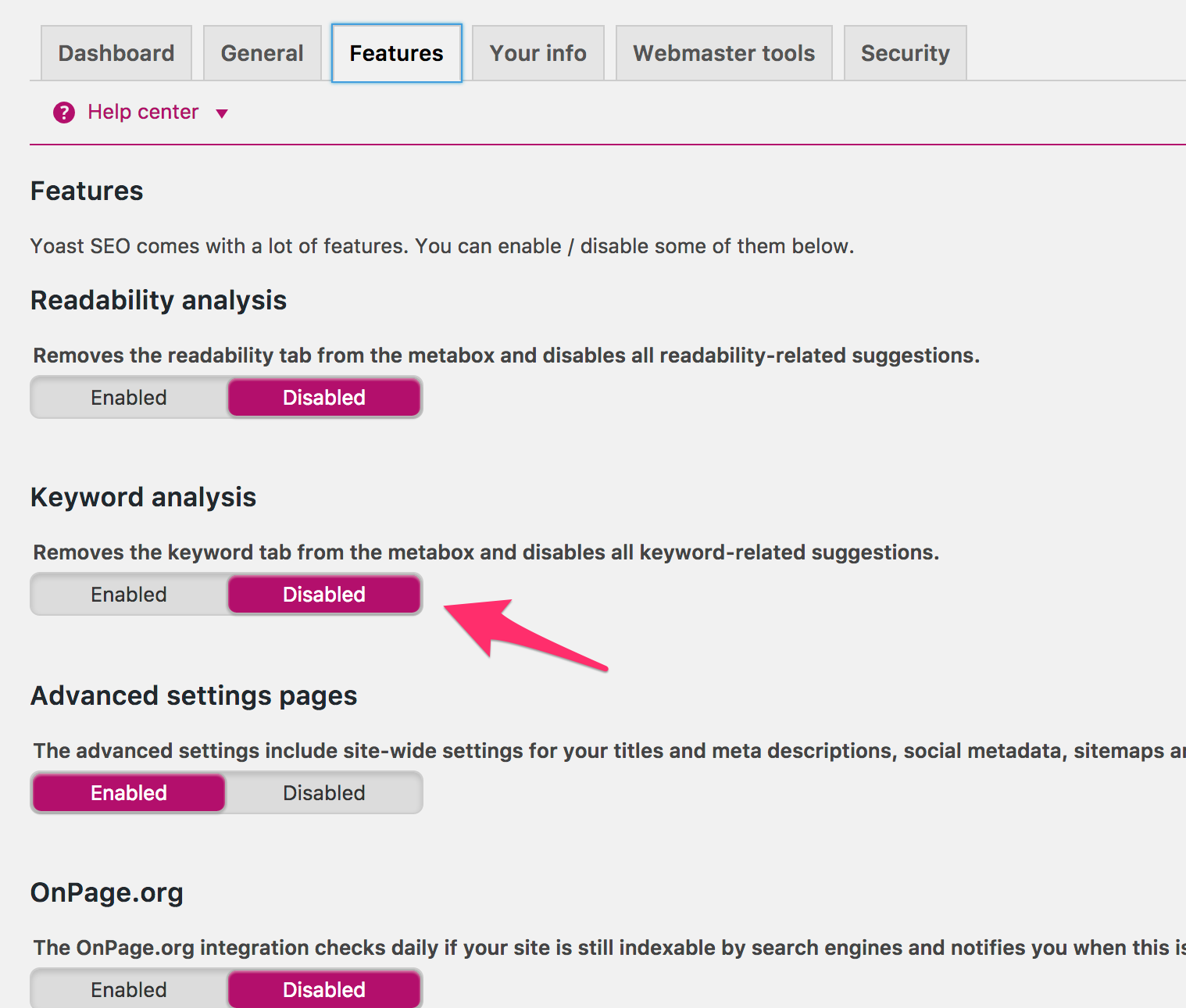
have a look in the WP-Admin under
SEO > Dashboard > Tab: Features
to check whether you have inadvertently deactivated the keyword analysis function.
Best regards
Saskia Lund
Thank you for all the information.
I would have a problem with "duplicate content".
The page is an OnPage.
I always get the message in the seo testers that the content is duplicated:
Example for Doppler:
http://domain.de/
http://domain.de/test
How can I make the setting that only the OnPage http://domain.de/ appears and the underside is not scored twice.
I have already tried it with the "canonical URL" option:
I have written the main page in the subpage.
Then the duplicate content is gone, but the link structure is wrong.
I hope someone here can help me.
Hello CodeX!
Which website is it specifically about? Is there a link from domain.com to domain.com/test?
Best regards
Saskia Lund
Hello Saskia,
Thank you very much! A great article!
My problem is that google builds the meta text itself, although I have entered my own in the snippet. I also sent the robots over it again a few days ago. Nothing changes.
The pages were not changed afterwards, but were created with the Yoast snippet when the page was created.
I can't find the error. Do you have a tip?
Thank you!
Hello Mario,
with pleasure!
a link to the website where the problem occurs would help me.
Is it the site that you have entered in your URL link next to the user name?
Best regards
Saskia Lund
Hello Mrs. Lund,
Thank you very much for this great description! However, I have one question: if I don't index keywords, don't I also have to remove them from the sitemap? In other words, do I have to check the box for taxonomies (sitemap)?
Best regards
Hello Ursela,
Exactly!
The same applies to all other things that you do not want indexed: also exclude them from the sitemap.
Best regards
Saskia Lund
Hello Saskia,
Great description. Thanks for the effort.
Which social share plugin works well with Yoast.
At the moment I'm using the Tweet, Like, Google +1 and Share plugin, which can cause problems because of the openGraph code.
Hello Michael,
There are a few:
Monarch from elegantthemes.com for example. Or the Module in the Jetpack plugin from Automattic.
Best regards
Saskia Lund
Hello Saskia,
it doesn't show me the focus keywords field or the analysis in the YoastSEO box on all my pages. I've already searched through everything and compared it to the settings of other websites where it works (I'm a web designer). I haven't changed anything on the current one, but it just doesn't show these fields. Because the plugin doesn't do me any good without analysis or focus keywords (I don't mean the meta keywords, by the way). Do you have a solution for this?
Many thanks in advance for your help!
Fabian
Hello Fabian,
if something is not displayed and you haven't disabled any settings in the admin view (the little box at the top right "Customize view" on every WP admin page) or in YOAST SEO, e.g. under SEO > Dashboard > Features, I'd guess a plugin conflict. I know that this is always a bit annoying, but the only thing that helps is to deactivate all plugins, then reactivate them one by one to see which one is the culprit.
Good luck
Saskia
hello Saskia, I have installed the plug in, everything worked great and now I have written a new blog post and I can neither for this nor for the old, keywords (in the traffic light) enter, all fields (optimization of content, social and advanced) suddenly no longer active.... What is the reason for this?
Thank you very much for your answer, LG Isolde
PS: Can I simply update WordPress and all plug-ins without any problems or would you advise against always updating?
Hello dear Isolde,
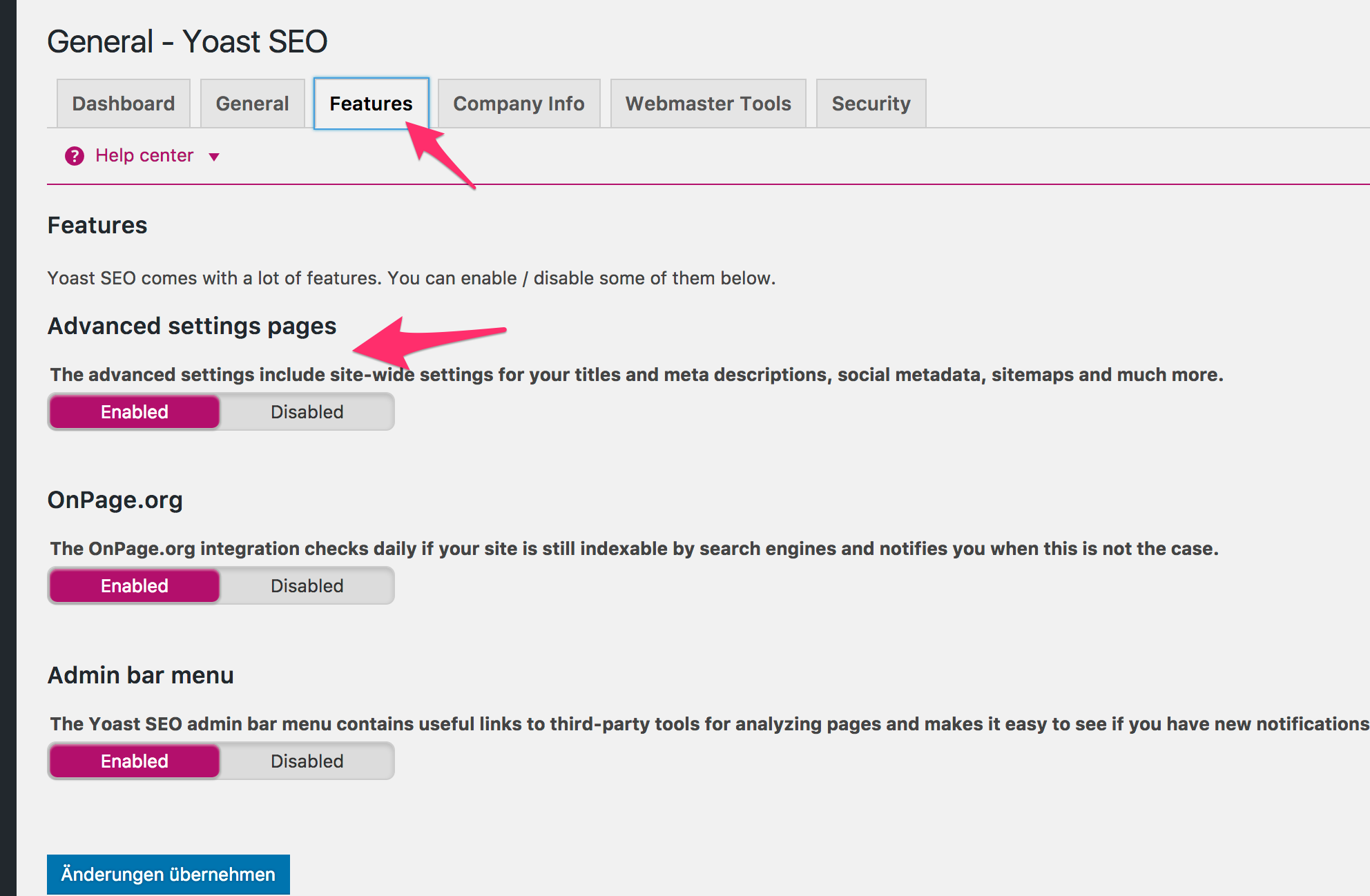
Have a look at my previous answer (with the screenshot to Simon). In one of the last updates of the YOAST SEO plugin, a few settings have been added that deactivate the keyword analysis and the SEO box itself, etc. by default.
Under SEO -> Dashboard -> In the Features tab, you must set the following sliders to Enabled:
If it still doesn't work properly, a plug-in conflict may be to blame.
Dear Saskia,
Your blog is the only one that addresses the issue of "switched off" traffic lights. So good work so far 😉
I have the same problem as Isolde before me. But I still can't get any further with your tips 🙁
I have used a template for 2 different websites. I have installed yoast 4.6 on both of them. On one website it works perfectly, on the other website the traffic light stays off - even though both sites have exactly the same settings. I have already deleted the plugin and then reinstalled it, but the traffic light is still off.
Do you have any other tips that could help me?
Best regards
ralph
Hello Ralph!
Which other plugins have you installed on the two blogs? Or which plugin have you NOT installed on the working Blocg, but which is active on the one where Yoast is not working properly?
Are both blogs on the same server or are they each hosted separately?
If separate hosting, are the php settings different?
And: do you have a link to the page where this doesn't work?
Hello Saskia,
the two pages are running on different servers and on the page that is not running, only the plugin "html special charackters helpers" is added. When I deactivated it as a test, nothing changed.
There are more plugins on the page that is running.
The side that runs: http://www.pidderlyng.de
The page is not running: http://www.jochum-egelsbach.de
LG
ralph
Is everything identical on both pages in the blog settings and in the Seo settings (YOAST)?
If not, where do they differ?
And how do the php settings differ? Please check the php info by creating a txt file with the name info.php and the following content:
to the root directory of both sites via Ftp.
You can then view all relevant php settings under domain.de/info.php.
Oh, and last but not least: are any javascript errors displayed in the browser console when you are in Wp-Admin?
Are any errors displayed in the error.log of the server when you are in the backend of the site?
Hi Saskia,
I have tried everything (except for the php comparisons - somehow it didn't work).
The yoast version is identical, all settings are identical and there are no error messages in the console (except for a css token).
But: Your tip with the error_log was good. It showed me a "php Fatal error: Allowed memory size" for the "revslider" plugin. Then I deactivated the revslider and finally the traffic light became active 🙂
On the website that works, however, I have the same revslider on it and it works perfectly there ???
I think that I will first make the yoast settings and then reactivate the revslider. Or will the yoast settings then become unusable again?
LG
ralph
Yes, there is an error in the code output. After the first angle bracket there must be no space between the bracket and the question mark. Then the PHP settings query should work.
On the page that you can then call up (in this case that would be: http://www.jochum-egelsbach.de/info.php ), if you press CTRL+F in the browser, you can search for
memory_limitsearch. Compare the php server settings with the blog at pidderlyng.de.Increase the value to 128M or even 256M.
In the upper section of the php settings page you will also find the path to php.ini where you can change this setting. Depending on your hosting provider, there may also be a way to access php.ini in your hosting panel, so that you do not have to/can do this directly on the server (depends on the hosting package).
EDIT: I have corrected the output error in the previous answer.
ok, thank you very much, I'll try it out a little later and let you know. I now have an appointment.
LG
Ralph
Hi Saskia,
Now everything is fine. I compared the two php.ini's and saw that the working page had a memory limit 4x as large.
Changing the size then caused new problems, because the site is on a T-online server and uploading a modified php.ini on these servers is a real challenge...
But in the end, thanks to your great help, I am very happy that everything worked out.
LG and have a nice WE
Ralph
Hello Saskia,
First of all, thank you for your detailed and sensible description, I have rarely read comparable documentation on this topic yoast.
I also have a burning question about this. It concerns readability. In addition to optimizing the search terms, this tool offers a readability analysis. In this readability analysis, there is this obligatory eye on the right-hand side under the respective points. If you now move the mouse over the eye, the following message appears: "Mark this result in the text." Perhaps I have overlooked something in the settings, but nothing is highlighted in the text.
First of all, thank you very much for your effort and certainly promising answer.
Greetings Peter.
Hello dear Saskia,
Thank you very much for the Yoast settings guide and the effort you put into the blog.
I have just tried to import the "settings.ini" file into Yoast under Tools -> Import. Yoast then displays the message: "Settings could not be imported: For security reasons, this file type is not allowed."
Can you help me with how I can import your optimal settings into Yoast?
Best regards
Nicole
Hello dear Nicole,
To import the settings.ini, you must first compress/package the settings file into a .zip file. Then you can upload it in the YOAST backend. I have already packed the settings.ini as a zip file at the top of the article. You have probably set your browser to automatically unzip files when you download them.
Please remember that you will overwrite all your existing settings when importing a settings.ini. In the section on settings.ini, you will find precise instructions on what work still needs to be done after importing the settings.ini provided: to the section
Best regards
Saskia
Hello Saskia, thank you very much for all the information! I hope I haven't overlooked the following: Do I have to set something special so that the focus keyword is also output in the source code? Strangely enough, the Yoast plug-in only outputs the description, but not: meta name="keywords"
Hello Ute,
the focus keyword, which can be entered in the YOAST SEO box in the respective page/post, has no influence on the output of html code of your website.
The background of the focus keyword is simply that YOAST offers you a way to check the content (in the WordPress editor of the current page) of your page for the keyword entered and then make suggestions for improving your content text in order to make this focus keyword even more relevant within this page.
It is merely a checking tool for your content - nothing more and nothing less.
If, on the other hand, you want meta keywords to be displayed in the head of your page, you must check the box for "Use meta keywords tag" under SEO > Title & metas > "Other" tab, as explained in the "YOAST SEO META BOX" section of area 03.Directly to the section)
Then save. The meta keywords input fields are now available in the YOAST SEO Box.
I hope I have been able to help.
Oh, thank you very much! Because Yoast can't read our metaboxes, i.e. the editor is empty, the plug-in can only evaluate page titles and descriptions. Everything related to the content always shows errors anyway. That's why I thought that the focus keywords should also be visible in the code at the same time. Now I understand them as focus for my content, great. Great help!!!
Thank you very much for this comprehensive and above all very helpful article! It has helped me a lot with my blog 🙂
But I still have one question. Perhaps you happen to know a solution to my problem.
I have set an individual meta description for each post, but Google doesn't seem to accept it. It doesn't take over the description for the start page either. This is really annoying because it doesn't look good in the search results.
Do you know why that might be?
Hello Maria!
Please send me a link to your website and I will have a look at it.
Thank you very much for the quick reply.
Here is the link: https://riamarleen.de/
Hello Maria!
I've now had a random look at some posts and the required meta descriptions are included everywhere. When did you add the descriptions?
If this was only recently, you will probably have to be patient, because once Google has indexed some of your pages, it sometimes takes a while for changes to become visible. This can sometimes take 8-12 weeks.
You can try to speed it up by resubmitting your sitemap in Google Search Console.
I always define the meta descriptions directly when I write a post and usually don't change them afterwards. That's why I'm so surprised. Google hasn't even adopted the meta description for the articles I published in March/April.
In the meantime, the meta descriptions are no longer even transferred to Facebook when I share a post. Could this be due to the Yoast plugin or perhaps my theme?
Hello again Maria,
I've now had some time to look at your site again. But even on a second look, I can't find any external errors.
On the start page and also in your contribution pages there is a
head-area each have an exemplarily maintainedmeta name="description"-entry. So nothing should stop Google from using your meta descriptions. Here and there the meta description is a few characters too long. For example on the homepage. However, Google will then simply shorten it by the excess characters - so this is not an exclusion criterion.Even with an external SEO crawler, I can read your meta descriptions perfectly and could not find any significant errors. Take a look here:
Your SEO report
Hi 🙂
I am so glad that I ended up here 🙂
Thank you for your contribution!!!
While I was in the settings, I noticed that my mobile version does not work when I have yoast activated (and only then). Versions are all up to date and apparently the theme also supports the yoast plugin. Can you help me there..am desperate and can't find anything that helps me. Any idea what the problem could be? Lg
Hi Saranda!
What exactly do you mean when you say that the "mobile version no longer works"?
Are there any display errors then? A screencast or screenshots would be helpful 🙂
Hello Saskia,
For some time now, the "Focus Keyword" field no longer appears. I have already followed the usual procedures, but unfortunately I can't get any further. On the Yoast site itself or the support is exclusively in English and here I have some deficits.
Do you have any tips on what I can do to get this field back?
Thank you Armin
Hi Teichert!
Have a look at your user profile. If you scroll all the way down there, you will find some yoast settings where you can deactivate the SEO analysis, for example. This would then hide the keyword fields. If you have a checkmark in there, simply remove it and save your profile. If that was the "mistake", then the focus keyword field will be there again.
Otherwise:
What were the "usual procedures"? Deactivated all plugins except Yoast and switched to the default theme? Is the field back then?
If so, reactivate one plugin after the other and check the Yoast field after each plugin.
If the field disappears after reactivating a plugin, you have found the culprit.
If the field is still there after reactivating all plugins, change the theme back to your desired theme.
If the field then disappears, there is a theme incompatibility.
Hello Saskia,
After a long search, I saw that Yoast SEO can be deactivated under "Users". Since I haven't been using WP for that long, I hadn't even thought about it. But I also don't know how the box was ticked. Because I certainly didn't do it knowingly. But what else have you revised the layout???? Looks so different...
LG Teichert
Hello Teichert!
It's great that it's all sorted out!
Yes, I have redesigned my website a bit and updated this post in February for Yoast Seo 6.3.x. Just clear your browser cache if you haven't done so for a while. This way your browser will always load the latest CSS (design) and JS files.
Best regards
Saskia
Hello Sakia,
Yes, I clear the cache regularly, if not every minute ;0) But my last visit was some time ago. However, I immediately noticed the new design. Thanks again and keep up the good work. You are one of the few who reply so quickly and in such detail.
LG Armin
Hello,
This is a really good guide! Thank you very much.
I used to have wpSEO, but will now switch. Three questions:
- For the Premium package, you pay a one-off amount and get special functions in return. Updates and support for one year only. What happens at the end of the year? I assume that I will then have to pay for updates and support again. But if I decide that I'm happy with the normal version, what then? Am I then stuck with a plugin for which I no longer receive updates?
- What is the best way to proceed when switching: deactivate or uninstall wpSEO before installing Yoast, or only afterwards ...?
- Is there an AMP module on board?
Many thanks
John
Hello Johann,
Thank you very much for your praise!
As far as your decision to purchase the YOAST SEO Premium license is concerned, I can understandably only help you to a limited extent. Just have a look at this overview to. There you will find a table comparing the features of the Premium version with those of the Free version.
If your license expires and you do not extend it for a fee, you will no longer receive updates for the associated plugin. At least this is the case with time-limited support and update licenses - this applies not only to YOAST licenses, but also to most other Pro or Premium plugin licenses on the market. It is rather rare that you only pay once and then receive free updates for the purchased software indefinitely. The best-known example is the Microsoft Windows operating system. When a new version is released, Microsoft asks you to pay.
If an update license expires, it is advisable to deactivate and remove the associated plugin - at least from the point in time when an update is released that is security-relevant or compatibility problems with a new WordPress version occur.
After deactivation and removal, the free Yoast version can be installed and activated from the WordPress repository at any time. Meta titles and descriptions that have already been maintained will continue to be used by the free version. Only the premium functions are no longer available. If, for example, you are using the redirect module from the premium version, you should save these redirects somewhere before deactivating the premium version and then use an alternative plugin in which you then set up these redirects again... (see also the article above on this topic).
Under this and this Link you will find information about the YOAST license. And here you can find the applicable GTC when purchasing a Yoast license. For further information, e.g. how high the renewal costs for an existing license agreement are, you would have to contact Yoast directly 🙂
The same applies to the question regarding the metadata already maintained in wpSEO. EDIT:
In YOAST SEO, under Tools → Import and Export, you will find a tab called "Import from other SEO plugins". And here in the tab you can select wp SEO, among others. Yoast will then import the settings already set into the Yoast settings.
Topic "AMP"
Under the following link you will find a Helper pluginwith which you can link Yoast and the WordPress AMP plugin so that your AMP website pages contain valid meta data. You can find more information here: WordPress & AMP: part II
I hope I was able to help you
Dear Saskia ,
Thank you very much for the detailed answer!
So far everything is clear. Only regarding the licenses:
It's clear that the licenses run on an annual basis. But this is how it looks to me:
- a) Free: Limited range of functions, but ongoing updates
- b) License: complete range of functions and support, everything ends after 1 year. That's ok! But as I understand it, the updates also end then. With the consequence of having an upgraded plugin that is no longer updated ...
And that would make my stomach hurt...
Thank you!
LG Johann
Hello Johann!
Yes, that's exactly how it works. You pay the Premium license fee for updates to the Premium version and Premium support. This covers 1 year of updates and support. When the license expires, access to updates and premium support is deactivated by Yoast.
If you do not renew, you can activate and use the free version at any time as described. However, functions such as the redirect module and premium support will then no longer be available.
As I said, this license model is quite common in the software sector - especially when software updates have to be provided regularly. After all, someone has to permanently program and further develop it, and in this case adapt it to new SEO practices, adapt it to new WordPress versions, etc.
This is why premium and pro plug-in providers generally opt for the time-based license models described above.
Thank you very much for your quick reply ... I'm really amazed 🙂
I may have expressed myself incorrectly: the license model is of course ok!
I was concerned that without renewing the license I might be left without updates. But as you write: Downgrade to the limited free version with its updates.
Thanks for the clarification 🙂
A good night to you
johann
Gladly, gladly.
Good night too!
VG
Saskia
Perhaps a little tip:
If you want to, you can also use the freeware until there are discounts on the Pro version.
This is usually the case during Black Friday and Cyber Monday in November 😉.
Hello
When I call up my page, the page where the cross is to close it appears at the top in Firefox, Chrome etc.. But if I just hover over it, the page title appears but also the page title of the main page. Which does not fit at all. How can I change this?
It would be great if you could explain this to me.
Hello Sven,
I have described in detail how to set the page titles with Yoast in the Title & Meta section of the article above.
If you click hereyou will be taken directly to the appropriate section.
Just read it through again 🙂
Best regards
Saskia
Hello Saskia,
Thank you very much for this article. However, I have a question about the SEO box that you also show in the last screenshot. I used it for a long time, then it stopped working from one day to the next. It still appears under every post I edit, but there is no reaction when I click on "Edit code snippet". Do you know how this can be or what I can do? I have not changed the settings.
LG Hannah
Hello Hannah!
There may be a plugin or theme conflict.
How to find out about a plugin conflict:
The only thing that helps is to deactivate all plugins and switch to a standard WordPress theme (e.g. Twentyseventeen). The Yoast box should now work perfectly. Now reactivate your plugins one by one. As soon as the Yoast box no longer works after reactivating one of these plugins, you know which one is responsible for the error and can ask the plugin developer for help.
If the Yoast box still works after reactivating all plugins, then switch back to your actual theme. If the Yoast box then no longer works correctly, there is a theme conflict and you should contact the developers of your theme for help.
Best regards
Saskia
Hello Saskia,
First of all, thank you very much for your great instructions for the Yoast settings, your effort and the great importable presets. I was already able to use them gratefully about 1 1/2 years ago.
The import worked back then, although I no longer know how 🙁
Now, unfortunately, I have problems:
When I try to import the complete .zip file (as you offer it for download), I get the message: "Settings could not be imported: No settings found in the file."
When I try to import the single "settings.ini" file (unzipped-for Windows) into Yoast, I have the same problem as Nicole above. The message appears: "Settings could not be imported: For security reasons, this file type is not allowed."
So both ways that I can imagine do not work to import the file. Can you tell me where my mistake lies? I'm completely stumped and just can't remember how I did it back then. In addition, I don't understand your instructions in the reply to Nicole 100%.
Kind regards
Reca
Hello Saskia,
Perhaps I can contact you again:
I have changed the setting in the setting under:
> Social > Twitter > The standard card type to be used
selected: Summary.
But it always appears in the source code and in the display on the start page, in the post only a "twitter:card" content="summary_large_image" is displayed...
What am I doing wrong?
Hello, thank you very much for this detailed guide - but unfortunately I can't find most of the screenshots in my YOAST SEO 7.1, apparently the plugin has been completely redesigned 🙁
Hello Chris!
Yes, this post was just updated recently (end of February) for version 6.8 and just 3 weeks later Yoast 7.0 was released
I will therefore be revising the article for the current version shortly.
Maybe just ask your question here in the comments if you have a question that the article doesn't answer (at least until I find time to update it).
Hello,
I would like to separate long words, including keywords, with the help of Softhypen. Unfortunately, Yoast-Seo cannot recognize these hyphenated words as keywords. Is this a bug or does hyphenation have an effect on Google searches?
Thank you very much for keeping the article up to date, it is really a great help and so perfectly illustrated!
I would also like to thank you for your detailed description. It helped me a lot as an absolute beginner!
Unfortunately, I don't have a meta description displayed either. I have already read above (2015) how this should be set, but this is not possible in my version (installed the day before yesterday).
Under the "Display in search" tab, almost everything in content types, media and taxonomies is set to show or yes. This also includes all references to meta descriptions.
Why is it not displaying the meta description field?
Yoast Seo also reports that the keyword does not appear in the first paragraph, even though it is used several times. It also does not recognize internal links, even though they are present. What is the reason for this again?
And finally, one more (probably very stupid) question: Where do I set the focus keyword? Can there be several?
Thank you so much!
@Reca @Gartenblogger Hanns @Annett,
Yes, importing the Setting.ini from Saskia doesn't work for me either. As far as I can understand here, the last customization of Saskia was related to version 6.8. Currently, i.e. now in May 2018, the Yoast SEO plugin has reached version 7.4.2. I would say that Yoast, together with its team, is developing its plugin so quickly that Saskia can hardly keep up. Too bad, I had hoped that the Setting.ini would finally give me control over the many settings. But I looked at my exported Stetting.ini in the coding editor and Saskia's Setting.ini and there are huge differences, if only in the number of lines.
Today I updated the article for the current Yoast SEO version. I have also adapted the settings.ini for the Yoast SEO 7 version.
It should work again now.
Best regards
Saskia
Hello,
Thank you very much for the detailed description. Really mega.
BUT, unfortunately my Yoast SEO looks completely different. I have the latest version, at least there is no update at the moment. And I don't have the premium version. Nevertheless, I don't have a lot of tabs. For example, I don't have the tabs about you, security, homepage, or the general tab in the dashboard. I only have three tabs in the dashboard, for example.
What could be the reason for this? Is Yoast SEO perhaps different for every WordPress theme?
I hope you can help me further 🙂
Kind regards
Nikki
Hello Nikki,
As promised, I have updated the article for the current Yoast version.
Best regards
Saskia
Thank you very much for the update!!!!
Hello Saskia,
lots of great tips from you!
Due to some error, the readability analysis can no longer be switched on. I have tested the language in both German and German (Sie). Unfortunately, the traffic light disappears with every switch position.
Do you have any ideas?
Greetings, Ingo
Hello Ingo,
Have you checked whether you have activated the SEO analysis? No traffic light without SEO analysis. (see SEO > General > Tab: Functions)
If the traffic light disappears, there may be a plugin or theme conflict.
This is the best way to find the error (but make sure you have the SEO analysis active before you start):
1. deactivate all plugins except Yoast SEO. > Now check if the traffic light is back. If not, step 1a. If yes, step 2
1a. Change theme to default theme. E.g. Twentyseventeen from WordPress > is the traffic light back now? If not: Bug found in Yoast SEO.
2. reactivate the plugins one after the other. After each plugin activation, check whether the traffic light has disappeared. If the traffic light has disappeared after activating one of your plugins, you have found the culprit. > Step 3
3. bug report to Yoast SEO due to incompatibility with plugin XY and request for feature for compatibility AND bug report to plugin developer of the plugin in question due to incompatibility with Yoast SEO.
Good luck!
Saskia
Hello Saskia,
Thank you very much for your detailed contribution. I have tried to do everything correctly and hope that I have understood the content to some extent. As a "hobby web operator", this is not always easy.
I have the premium plugin, which is also very helpful with the redirects. What I don't understand, however, is the "extension" for the Premium "Add keyword".
When I am asked to add a keyword, the following message appears: "Please enter an SEO title". If I were to follow this request, my previous entry (with SEO title) would be overwritten and the first or original entry would no longer be valid!
Maybe I'm overhearing something ... ? Sorry if my question is very stupid ... 🙂
Best regards and good wishes,
Sam
Hello Sam,
In the premium version of Yoast SEO, it is possible to set more than 1 focus keyword per page/post. (see no. 1 and no. 2 in the screenshot)
Yoast SEO then checks the content optimization of the respective page content for all focus keywords created in the Yoast SEO box.
The SEO title and the meta description always remain the same (see no. 4 in the screenshot). This is because the page remains the same. You do not change anything here after creating a new focus keyword;
you simply write a new focus keyword in the input field provided (see no. 3 in the screenshot).
Yoast SEO can then check the current page and give you feedback on what you should adjust so that this page is also optimized for this word.
I hope this helps a little.
Hello Saskia,
Thank you very much for your detailed answer, now I have understood this too!
Once again, good wishes and best regards,
Sam
Hello Saskia!
You write that you have deactivated the Ryte function.
If I now import your Settings.ini, the function is activated.
Or is the setting not affected by the ini at all, but only the settings such as page title template and the like?
Sorry, it was a mistake on my part.
But you still have a screenshot of 'Title & Meta' here, has it now been moved to the premium version, or is it still a relic from older versions of the article?
At least it doesn't seem to exist in version 7.6.1
You mean this screenshotor (the last interface screenshot pretty much at the end of the post)?
I found it still useful for this purpose, as the corresponding text section only deals with the view for the collective editing of SEO titles and meta descriptions in the "Tools" SEO menu. And this interface has not changed per se 🙂
But thanks for your suggestion anyway. Tiptop!
Best regards
Saskia
Hello Saskia!
I mean the screenshot after the paragraph 'I took the opportunity to change my snippet a bit. Hopefully it will be updated in the Google index in the next few days (or weeks).
Yes, exactly. It's simply a relic 🙂
Thanks for your tip!
Hi, unfortunately the file editor is missing. It is not displayed under Tools. I would be very happy if you could help me with this problem.
Hello Christine,
This could have various causes. Your WordPress installation may be a so-called "managed" installation (i.e. you have set up your WordPress via some app installation or another 1-click routine in your hosting panel). Something like this is offered by 1&1, for example. However, the managed installation prohibits the editing of .htaccess files etc. and then this Yoast file editor does not work or is not displayed.
So that you can still use the file editor, you must change the installation to standard if you have a managed WP installation.
I have dug up the following link to help 1&1 with this: Convert Managed WP to Standard (English)
Unfortunately, I can only "guess" how this works with your hoster and whether this is actually the problem in your case.
I wish you every success!
Best regards
Saskia
Hello Saskia,
First of all, thanks for the explanations, but I'm already failing at the beginning and hope I don't make a fool of myself 🙂 I'm currently trying my hand at the preparations, more specifically at the Google Search Console. I copied the number salad and now I don't really know where to paste it. You write in the Yoast SEO field for the Google Search Console and I think you mean a field in WordPress under SEO. But all the ones I've tried haven't worked and I'm slowly running out of steam... can you help me out? Would be very grateful.
Hello Anja!
In your WP admin area, navigate to SEO > General > Tab: Webmaster Tools
There you enter the number salad by "copying and pasting" it into the field provided for the Google verification code and save.
Here is a screenshot of the destination input field:
Hello Saskia,
First of all - SUPER description. However, I have a problem with the confirmation of the property. I have tried all possible variants (embedding HTML code. Confirmation via provider, confirmation directly via SEO in WordPress. The confirmation of the property simply does not work. For example, if I do the recommended way from Google and upload the HTML confirmation page to my FTP and then press the link, I get a 404 page. Do you know of any other ways to help? I just don't know what to do.
Best regards
Marco
Hello Marco!
Where exactly do you upload the html file from Google?
Maybe you could take a screenshot of your FTP directory?
It belongs in the "root" directory on the web server to which your domain points at your hoster.
Best regards
Saskia
Hello Saskia,
wow, what a clearly structured piece of hard work with comprehensible wording and clear instructions. - Thank you for finding your way through this jungle!
However, this is a beginner who wants to approach these topics step by step and now I'm hoping for help with my first hurdle.
I would like to change the permalinks and came across this tool:
https://yoast.com/research/permalink-helper.php
Everything looks so easy, but I can't get it to work despite several attempts. Hence my questions:
Is it correct to enter the main page in the first field?
fliesenfachbetrieb-wilke.de ???
In the 2nd field I have entered the ending of the existing permalink:
/?page_id=14
If this is not correct, please let me know what needs to be inserted there and how.
In the 3rd field "Your old permalink structure:" I leave the first option activated because that is the correct one.
By the way, the new ending should be "blog" in this case. But where/how can I now enter the new ending of the permalink?
If I now set this to "Custom" in the 3rd field below like this: /blog
then nothing happens.
Despite further research on the net, I can't find a solution. Hence my open request to the expert: Can you tell me what I have to do to make the change work? Thanks for the information in advance.
LG from Rainer from Solingen
Hello Rainer,
Do I understand correctly and you want to redirect your homepage (fliesenfachbetrieb-wilke.de) to another URL? That's what the tool you linked is for...
If yes, why? If no, what exactly do you want to achieve?
Best regards
Saskia
Hello Saskia,
Thank you for this detailed and easy-to-understand article on Yoast SEO. Finally some light at the end of the dark SEO tunnel 😉
I can no longer find the menu item "Title&Meta" in my Yoast version (9.2.1). Could you give me the exact path again? Or do I have to do this in the page itself in the Yoast Meta Box? And when will this be visible in Google?
If you could answer these questions for me, it would shed even more light on the darkness 🙂
Thank you very much,
Carola
Hello Saskia,
Lucky me to have found your instructions. We simply left out many settings in YOAST because some of the functions were not clear to us. Now we can see more clearly. Thank you very much!
Dear Saskia
Thank you very much for the great, detailed and clearly written article, which I have read from cover to cover. And now I have a few questions.
I have entered a code for Google Search Console verification with my web host. Is it possible to do the verification again via Yoast or will this cause a mess?
Regarding the taxonomy settings and how this affects Google indexing. I have turned off the keywords, but what about the "categories". On my site, the categories provide an overview of the articles on my site http://www.urlaub-in-daenemark.net (it's a news portal), which I have categorized under this category. How does Google handle it if I set it to "do not show in search results"? Does this affect the findability of articles? Do you know anything about this?
By the way, I edited the categories with Yeost (is that useful???), and now I have certain focus keywords for both the posts and the categories. (they were not displayed as "focus keyword already present").
Many thanks for your help already!
Best regards
Iris
Hello Iris!
Thank you for your feedback and your questions!
1. verification of site ownership for Google Search Console
If you enter the verification code again in Yoast SEO, there will be no mess. Google offers you optional Verification methods: per
Even if you use all three methods, there is only one "property" for the respective URL in your Search Console (you should create both the www and the non-www variant and both with https and without, if your site is offered https encrypted).
2. on-page SEO for category pages
In your case, you should of course have the category pages indexed! Also check whether you can output the editing entries (category description) in your theme. If not, simply write to the theme developer and ask if they could extend the theme accordingly.
In your case, activate the display of blog categories in the search results.
In this context, please also be sure to take another look at the keyword canonical urls. However, explaining this in the comments would go beyond the scope of this article.
3. keyword optimization
If you optimize several pages on your website for the same keywords, this is counterproductive and even negative, as the pages take relevance away from each other. The same applies here: work with canonical urls and make alternative keyword optimizations if necessary.
Best regards
Saskia
Hello Saskia, your instructions are very helpful and interesting. So far I've looked at them but haven't implemented them yet. Can the settings also be used on the current SEO yoast version 9.4? I have the free version, not the premium version. Is this sufficient?
best regards Marlon
Hello,
In the search console, the functionalities are currently reversed. Do I see that correctly?
The HTML tag appears under Recommended. In this case, the instructions differ from the version in the search console.
LG
Lothar
P.S.: cf. Answer above
Hello Lothar,
Thanks for the hint. Google changes things here from time to time. However, it is still possible to select a different method for verifying the ownership of a website in the Search Console - regardless of which method is currently displayed as the recommended method.
If the HTML tag is used, you can simply use the input field provided for this under SEO > General > Tab: Webmaster Tools and copy the Google verification code there. Save and, if necessary, delete the page cache and then run the verification check.
Best regards
Saskia
Hello,
I've been using the plugin for 3 years now, but unfortunately I've had a lot of problems with it. Currently it is the meta description. If I fill in the meta description under General, it automatically appears under all my posts. If I don't fill in the meta description, Google displays the meta description from my last post under my website. This was not the case before and is a further deterioration.
In the meantime, I would like to give the plugin a failing grade because the bug fixes have already cost me too many hours of my life and the constant updates have done more harm than good to my website. Everything has been changed in the backend, but nothing has changed in the front or writing program. The display is still bilingual (Denglish). Scroll worm alarm for longer posts and the support behavior is totally strange.
Kind regards
Hello Ronja,
The scenario you have described suggests that the theme you are using may not be programmed to be WP Codex-compliant. The Yoast SEO functionalities usually only show problems if such a theme is active in the WP installation or if other plugins are in conflict.
Which theme are you using on your WordPress site?
And what do you mean by "Everything has been changed in the backend, but nothing has changed in the front or writing program"?
Best regards
Saskia
Wow, what a great tutorial. Thank you very much. I only have one small problem: in the browser tab, the homepage only shows Home and next to it the title of the WordPress website. But the subtitle of the website should be next to the title. If I deactivate Yoast SEO, the title and subtitle are there. So I must have missed a Yoast SEO setting somewhere. I can't find it in the instructions either. What am I missing? Thank you very much for your help. Nadine
Hello Saskia,
I am looking for information on the use of SEO tools under WordPress and found your site on Google during my search. First of all, the information that I use WordPress 5.1.1 and the AVADA theme. I currently have wpSEO as my SEO plugin. AVADA already offers the option to enter a page title, description and keywords in the backend. And I can also specify these on each individual page using the wpSEO plugin. My question now is whether the AVADA entries clash with the wpSEO (or YOAST SEO) entries or have a negative impact on each other? Should I rather leave the AVADA entries empty? Best regards Jens
Hello Jens,
I know the AVADA theme, but I don't use it myself in any customer projects.
What you could do would be to try it out.
To do this, enter something in the AVADA fields on one of your pages and also in the wpSEO fields. Save and then check the HTML of the edited page to see whether the meta tags of type title and description are written twice in the head area. If this is the case, you should decide whether you want to use the theme SEO functions or those provided by the plugin.
Best regards
Saskia
Hello Saskia,
Thank you very much for your helpful instructions.
I get the following messages when I do another revision in Yoast Seo:
An error has occurred in the 'introductionKeyword' evaluation.
An error has occurred in the 'keyphraseLength' evaluation.
An error has occurred in the 'keywordDensity' evaluation.
An error has occurred in the 'metaDescriptionKeyword' rating.
An error has occurred in the 'subheadingsKeyword' evaluation.
An error has occurred in the 'textCompetingLinks' evaluation.
An error has occurred in the 'textImages' evaluation.
An error has occurred in the 'externalLinks' evaluation.
An error has occurred in the 'internalLinks' evaluation.
An error has occurred in the 'urlKeyword' evaluation.
An error has occurred in the 'keyphraseDistribution' evaluation.
The smilelys show red ... in the overview, on the "edit bar", but green ... yoast in the dashboard does not recognize errors ...
Perhaps you can give me a tip?
Thanks in advance,
sam
Hello Sam!
It is difficult to diagnose remotely via the comment function why you are seeing these messages.
Please contact Yoast support if you are using the premium version or, if you are using the free version, go to the community forum at wordpress.org in the Support -> Yoast SEO section.
Alternatively, you could first deactivate all plugins except Yoast and see if the messages continue to appear. If not, activate your plugins one by one and check whether the messages return after each reactivation. As soon as they are back, you have found the plugin with which an incompatibility is occurring.
If these errors continue to be displayed despite deactivated plugins, simply switch to the WordPress default theme TwentySeventeen (or another default theme... TwentyTwenty, TwentyNineteen... etc.). If the messages are then gone, it's because of your theme. And then you should contact your theme developer.
Best regards
Saskia
Hello Saskia,
Thank you very, very much for your detailed answer. I will follow your tips and hope that I will find the solution.
All good wishes for you and happy May 1st,
Sam
Hello Saskia,
I would like to remove the date that appears at the front of the search results. Mainly because a date also appears in the search results before my homepage. I have already deactivated the date display function everywhere in Yoast Seo and the page has already been crawled again, but the date of the last update is still displayed. Do you have any tips on how I could get rid of this?
Thank you and best regards, Chris
Hello Chris,
You would have to take a closer look at your theme and, if necessary, adapt the code as you imagine it. Unfortunately, this goes beyond any support I can offer via the comment function 😉
However, your theme developer may be able to help you.
Good luck
Saskia
Hello Saskia,
Thank you very much for this helpful article. As a complete beginner with WordPress, it helped me a lot.
Best regards
Martin
for these details, it's very interesting, so once again much appreciated!
I have been working with Yoast SEO Premium for a long time and can only recommend it to everyone. Based on your article, I checked all the settings again to be sure, thank you very much.
Hello, I have now been able to adjust a lot of things, but I have the problem that the traffic light system does not start for me. Where a green smilie should appear, I have a green circle that is not closed and is constantly turning in circles. Do any of you have an idea how I could fix this?
Kind regards
Rico
Hello Rico,
possibly a plugin conflict. Try deactivating all plugins except Yoast SEO. If Yoast then loads correctly, you can gradually reactivate all plugins. As soon as Yoast "spins" again after reactivating a plugin, you have found the culprit plugin. If you still see the loading snail, switch to a WordPress standard theme such as TwentyTwenty or TwentyNineteen. Then the loading snail should really be gone and everything should load properly. In this case, you should contact your theme developer.
Good luck
Saskia
Dear Saskia,
I have read through and done everything, but I have a problem with the Webmaster Tools verification for Google. I have saved the verification code there and then when I go to https://www.google.com/webmasters/verification….
on the red button with
VerifyI always get the error message: Verification failed for https://annakateinteriors.com/ using the Meta tag method (less than a minute ago). We were unable to connect to your server.What am I doing wrong?
However, the site is already verified by the domain name provider at Google. Do I still need the meta tag verification?
However, I still get the message in the Search Console:
URL is not on Googleand the indexing request is always rejected.My page can be googled, but the wrong page description is still displayed, although I have executed all the other points in your description:
Example page -
This is an example page. It differs from posts in that it always stays in the same place and (with most themes) is displayed in the ...
Hello world! -
6 days ago - Hello, this is a comment. To start unlocking, editing and deleting comments, please visit the ...
I would be very happy about your answer!
Hello Katharina!
Google visits your site just like a "normal" visitor. Or at least very similar. You currently have a "Coming soon" page.
If you enter the verification code in the field provided in Yoast SEO, this entry will be displayed as a meta tag in the so-called head area of your website. At least if you display the regular WP pages.
Unfortunately, your Coming Soon plugin seems to display a page with an individual page template that does not contain the regular WordPress head. As a result, this meta tag is also not displayed.
You now have two options:
1. alternatively, you can select another verification method. For example, using an HTML file. You download this during the Search Console verification process and then upload it to your website directory via FTP upload. (Where the wp-config.php should also be located)
or
2. deactivate your Coming soon page for the duration of the verification process and display your homepage. So that the WP Head containing the Yoast SEO meta tag for the verification should be displayed.
Then try the verification again.
Good luck!
Saskia
I'm currently stuck on one point: I want to set the link to noindex or nofollow for individual uploaded media (PDF or zip) in the WordPress media library. However, I don't have an SEO box where I could select this. And the premium version doesn't offer this either, does it? Where could I set this?
for this comprehensive guide to Yoast!
LG
Sabiene
Dear Saskia,
Thank you so much for the effort you make to write such great posts in addition to your dog walks and work. AND then replying to the comments too! So valuable 🙂 I wanted to solve the following problem with Yoast: I have a small online store, but I started years ago with a general blog. Now Google simply indexes EVERYTHING (which isn't bad in principle, the main thing is that people somehow get to the site (and then buy something)). However, the wedding category is now always displayed as a sitelink, which is pretty stupid, as there were only 3 personal posts about it and the store generally has nothing to do with weddings at all. However, I wouldn't find not indexing so great either, because - as I've already said - someone might still come to the site via an old post... Do you have any idea how I can implement this other than by not indexing? In general, Google stops looking at 3 trillion billion pages at some point and puts everything at the top of the sitelinks... but you shouldn't set the products etc. to non-index. I hope you understand what I mean and have an idea? 🙂 Best regards, Bella
Hello everyone,
I found this site very great because I needed some good tips for Yoast SEO. I used some tips here and I am very happy with the setup. Thank you very much.
Hello Saskia,
Thank you very much for the great and specific tips.
I have a question about "Display in search results". I have not mentioned the location of my company here so far. Could it cause any problems in terms of SEO if I add it now?
Greetings and many thanks in advance,
Sylwia
As a newcomer to Seo, I am taking away some valuable tips. Thanks for that.
Lg Alisa
... will also use this in the future 😉 THANK YOU !!!! Best regards Mia
Thank you very much for the detailed instructions! The step-by-step explanation helped me a lot to finally configure my Yoast SEO plugin correctly. Super clearly written!
Finally a guide that really explains all the important settings - and it's also up to date for 2024. The reference to IndexNow in particular was new to me and very helpful. Thanks for that!
Great article! Clear instructions and very up to date. I didn't know about the IndexNow support in Yoast - that's a game changer. Thanks for putting this together!
Hello Saskia,
Thank you very much for the great and specific tips.
But I still have one question. Perhaps you happen to know a solution to my problem.
I have set an individual meta description for each post, but Google doesn't seem to accept it. It doesn't take over the description for the start page either. This is really annoying because it doesn't look good in the search results.
Do you know why that might be?
This is an excellent guide! Yoast SEO is a powerful tool, and proper optimization can significantly improve visibility and ranking. Thank you for the useful information.
Thank you for the informative article. Yoast SEO is an effective tool that significantly improves rankings and visibility when optimized correctly.
Hey, dude, how insightful! You've provided useful information about Yoast SEO that's easy to implement. I appreciate that.
Fantastic guide! I really appreciate how thorough you are with the Yoast SEO setup steps — from the general plugin activation, to fine-tuning settings like titles & metas, breadcrumbs, social network linking, and webmaster tools.
What are the main functions of the SEO analysis and readability analysis features in Yoast SEO, and how do these features help in optimizing content for search engines?